Undo the latest block of a Tenderly Virtual Environment from the dashboard, or roll back to a snapshot with evm_snapshot and evm_revert over Admin RPC.
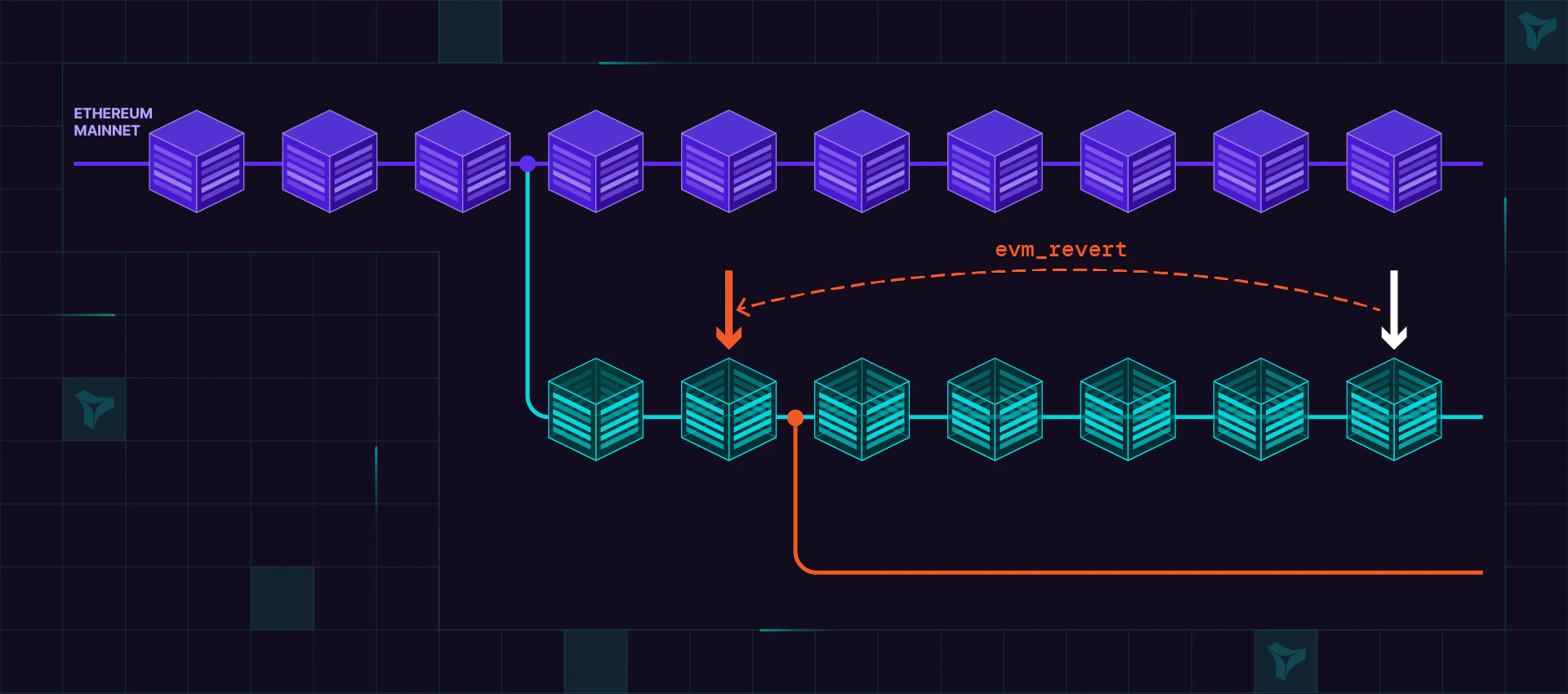
Reverting state discards transactions and their state changes on a Virtual Environment. The dashboard reverts the latest block, one block at a time. Over the Admin RPC, evm_snapshot and evm_revert roll back to a checkpoint you created earlier.
In your Virtual Environment, open Activity and click the transaction with the highest block number.
2
Click Revert
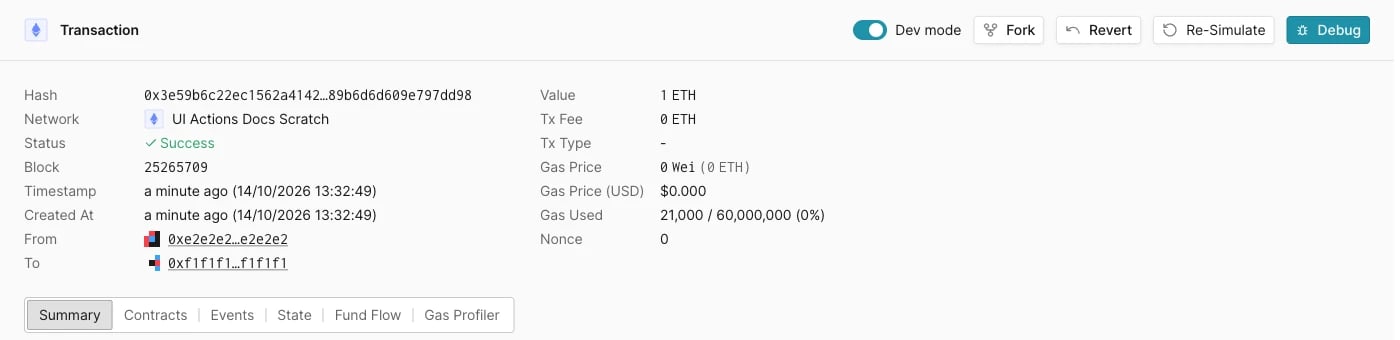
The transaction page header has Fork, Revert, Re-Simulate, and Debug. Revert is shown only on the transaction in the latest block.
Transaction page header. Revert appears only on the transaction in the latest block.
3
Confirm the revert
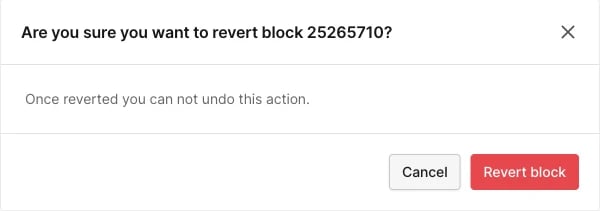
The dialog asks you to confirm reverting that block number. Click Revert block. A reverted block can’t be restored.
Confirmation dialog for reverting the latest block.
After the revert, the latest block of the Virtual Environment is the block before the reverted one. Transactions from the reverted block no longer have receipts, and their state changes (balances, storage, nonces) are discarded. The transaction that is now in the latest block shows Revert, so repeat the steps to go back one block at a time.
Reverted transactions in Activity
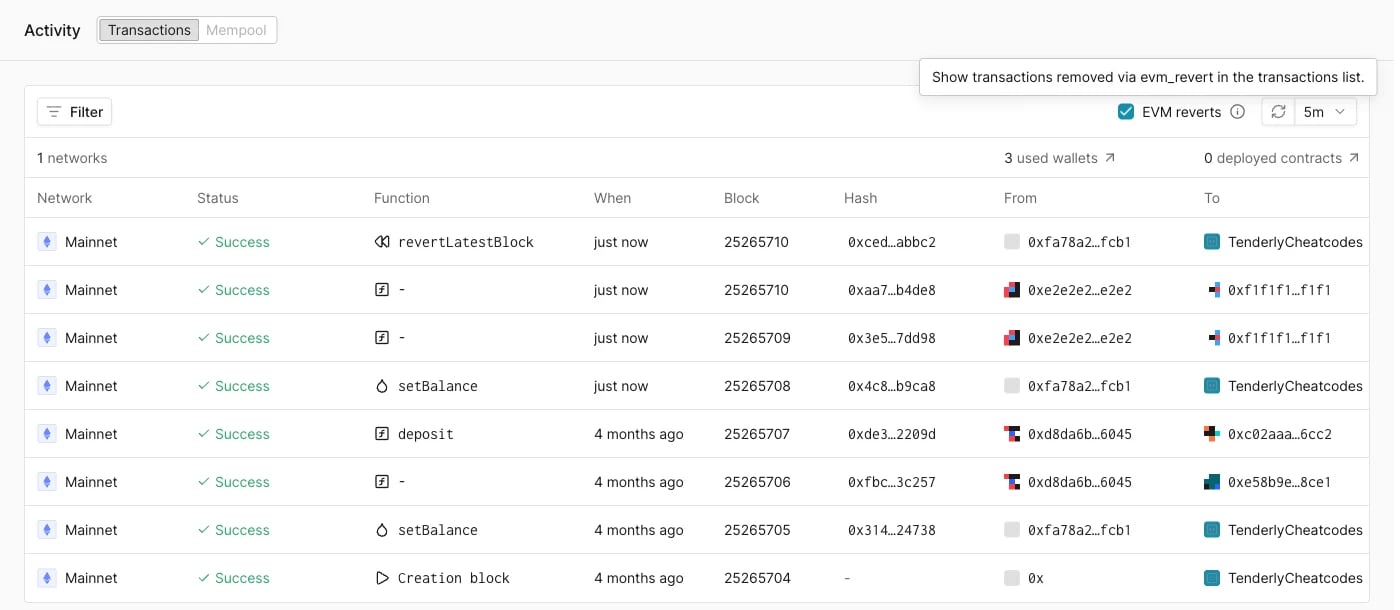
After the revert, the dashboard opens Activity with the EVM reverts option checked. With EVM reverts checked, the list also shows transactions removed by a revert, and a revertLatestBlock entry sent to TenderlyCheatcodes for each revert from the dashboard. Uncheck EVM reverts to list only the transactions on the current chain.
Activity with EVM reverts checked: the reverted transaction at block 25265710 is still listed, next to the revertLatestBlock entry.
Revert to a snapshot over RPC
1
Create snapshot
Use evm_snapshot to create a snapshot on the current block.
The method returns the snapshot ID you can use to revert.
A single evm_revert can roll back at most 2000 blocks. If the snapshot is more than 2000 blocks behind the current block, the call fails with:
revert operation is limited to maximum 2000 blocks
This affects Virtual Environments that produce blocks continuously (for example, a scheduled job minting blocks), where the target snapshot can quickly fall outside the 2000-block window. To return to a point further back, fork the Virtual Environment at the target historical block instead of reverting.
Fork at a historical block
To get a Virtual Environment whose state matches a specific past transaction, fork it from that transaction. The fork is a new, independent Virtual Environment, and the source is left untouched. There is no distance limit, so this is the way to reach a block more than 2000 blocks in the past.
1
Open the transaction
In Activity, click the transaction you want the new Virtual Environment to end with.
2
Click Fork
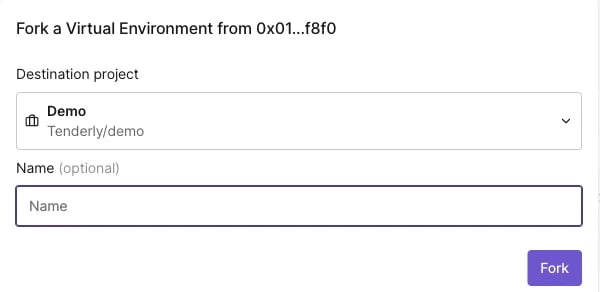
Click Fork in the transaction page header. The Fork a Virtual Environment from dialog opens with the shortened transaction hash in its title.
3
Choose the project and name
Select the Destination project, optionally enter a Name, and click Fork.
Fork dialog opened from a transaction page.
The new Virtual Environment contains the source’s transactions up to and including the selected one. Transactions after it are not copied.Forking from a transaction is also the way to “fork at a specific block number.” The Fork button in the Virtual Environment header always copies the current state.
Assistant
Responses are generated using AI and may contain mistakes.