> ## Documentation Index
> Fetch the complete documentation index at: https://docs.tenderly.co/llms.txt
> Use this file to discover all available pages before exploring further.
# Smart Contracts
> Add smart contracts to a Tenderly project, inspect their source, transactions, and state, look up verified contracts, and detect proxies automatically.
Learn how to add a smart contract to a project and keep track of its transactions in the Dashboard. When you add a contract, you'll see a list of all historical transactions (direct and internal) linked to that contract.
 ## How to add a contract to a project
1. Navigate to **Contracts** in the side menu.
2. Click **Add Contract**.
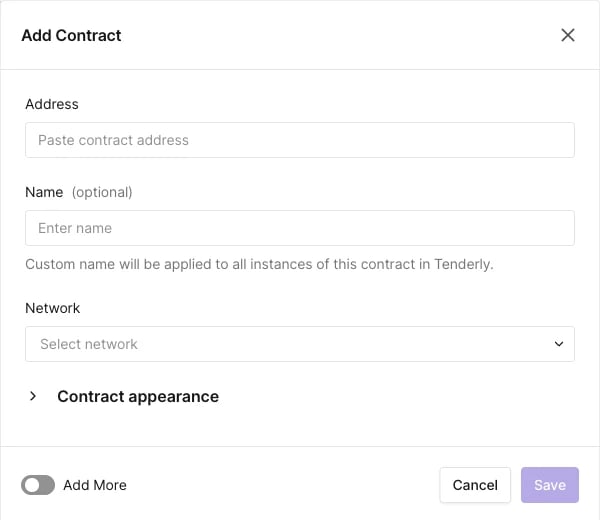
3. Enter the contract address, select its deployment network, assign a name, and click **Add Contract**.
## How to add a contract to a project
1. Navigate to **Contracts** in the side menu.
2. Click **Add Contract**.
3. Enter the contract address, select its deployment network, assign a name, and click **Add Contract**.
 Try adding one of these contracts to your project to get started. Open the contract in Tenderly, click the **Add to Project** button and add it to an existing project. Learn [how to create projects in Tenderly here](/platform/account/projects/overview).
* [Uniswap Router](https://www.tdly.co/contract/1/0x1cf9cbe70a84137c696f98587a9b06f7fa2b71b4): `0x1cf9cbe70a84137c696f98587a9b06f7fa2b71b4`
* [veCurveVault proxy](https://www.tdly.co/contract/1/0xc5bddf9843308380375a611c18b50fb9341f502a): `0xc5bddf9843308380375a611c18b50fb9341f502a`
## Looking up any verified contract
The Dashboard's search functionality allows you to locate any verified contract deployed on any of the [98 supported networks](/platform/supported-networks), whether or not it's in one of your projects.
Try adding one of these contracts to your project to get started. Open the contract in Tenderly, click the **Add to Project** button and add it to an existing project. Learn [how to create projects in Tenderly here](/platform/account/projects/overview).
* [Uniswap Router](https://www.tdly.co/contract/1/0x1cf9cbe70a84137c696f98587a9b06f7fa2b71b4): `0x1cf9cbe70a84137c696f98587a9b06f7fa2b71b4`
* [veCurveVault proxy](https://www.tdly.co/contract/1/0xc5bddf9843308380375a611c18b50fb9341f502a): `0xc5bddf9843308380375a611c18b50fb9341f502a`
## Looking up any verified contract
The Dashboard's search functionality allows you to locate any verified contract deployed on any of the [98 supported networks](/platform/supported-networks), whether or not it's in one of your projects.
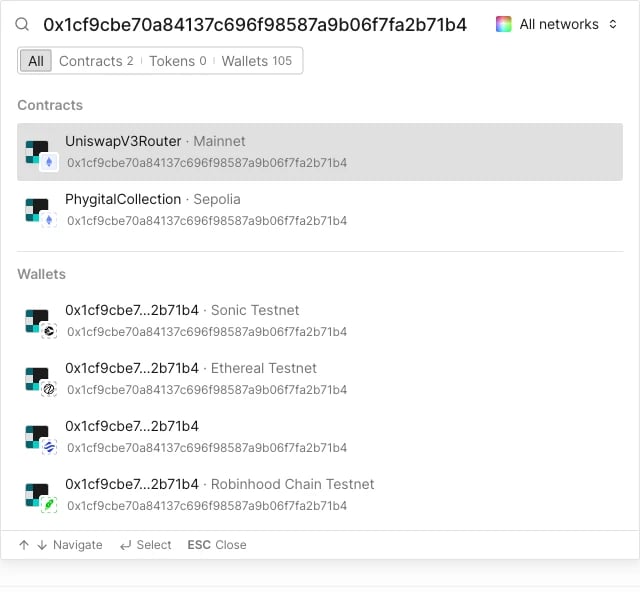
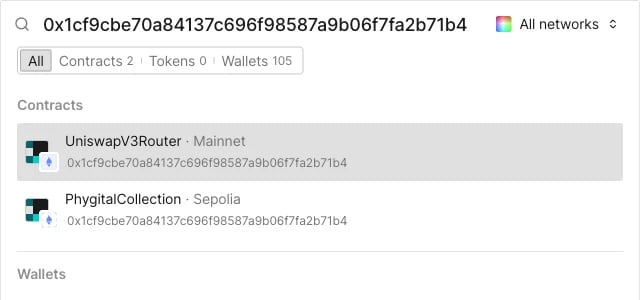 1. Paste the contract's address or name in the top menu search bar.
2. Select the contract from the search results.
1. Paste the contract's address or name in the top menu search bar.
2. Select the contract from the search results.
 This opens the same contract details page described below, reached via a `/contract//` URL instead of a project path. A handful of project-only elements are missing since the contract isn't in a project yet: there's no **Tags** field, the `...` menu only has **View in Public Explorer**, and the header shows **Add to Project** instead of **Convert to Proxy**.
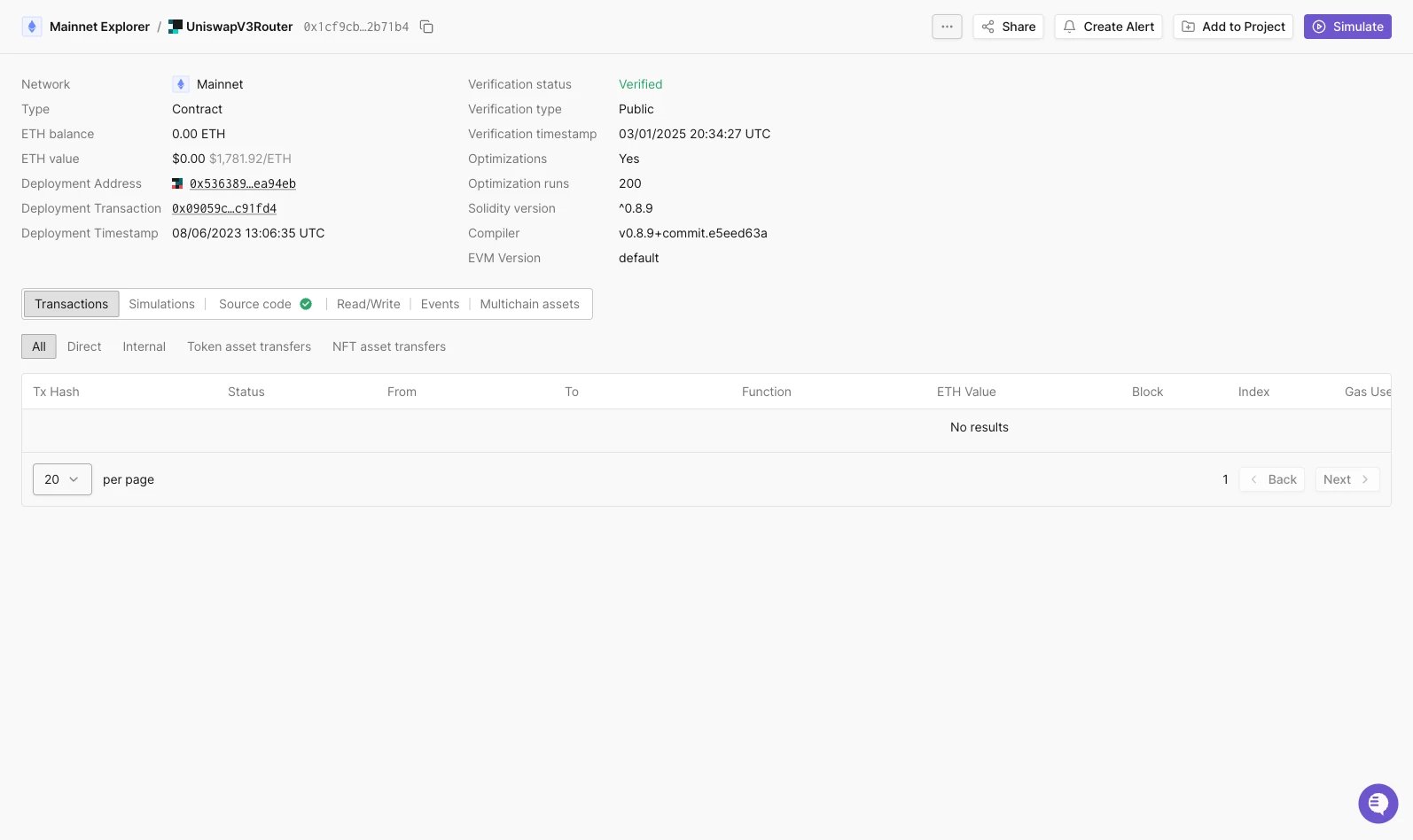 To add the contract to a project, click **Add to Project** and choose your target project.
## Contract details
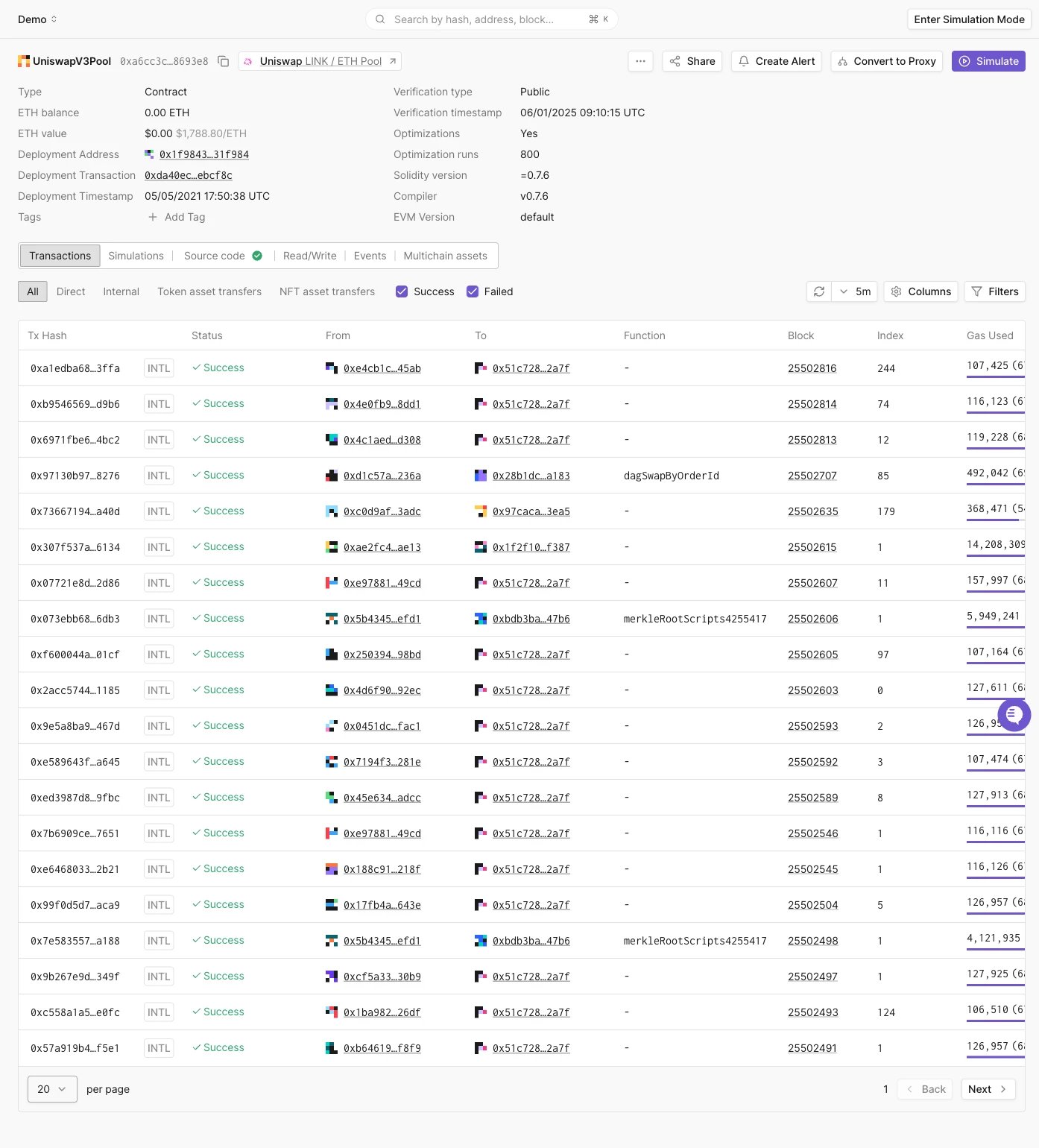
Opening a contract, whether from your project's **Contracts** page or from a lookup, shows a header info panel followed by six tabs: **Transactions**, **Simulations**, **Source code**, **Read/Write**, **Events**, and **Multichain assets**.
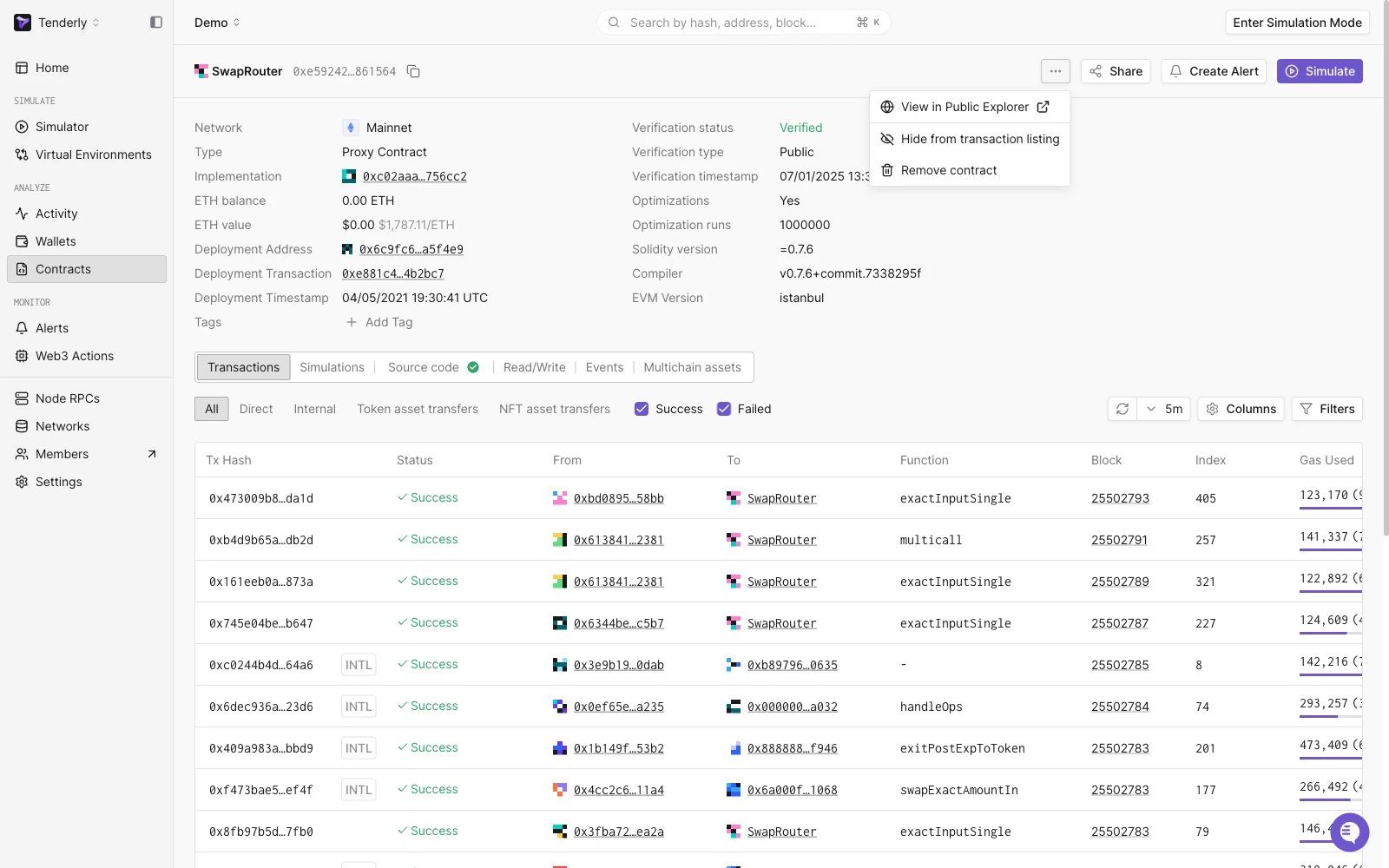
The header info panel shows the network, contract type (`Contract` or `Proxy Contract`), ETH balance and value, deployment address and transaction, deployment timestamp, tags, verification status and type, optimizations and optimization runs, Solidity version, compiler, and EVM version. The `...` menu next to the contract name has **View in Public Explorer**, [**Hide from transaction listing**](#hide-a-contract-from-the-transaction-listing), and **Remove contract**.
To add the contract to a project, click **Add to Project** and choose your target project.
## Contract details
Opening a contract, whether from your project's **Contracts** page or from a lookup, shows a header info panel followed by six tabs: **Transactions**, **Simulations**, **Source code**, **Read/Write**, **Events**, and **Multichain assets**.
The header info panel shows the network, contract type (`Contract` or `Proxy Contract`), ETH balance and value, deployment address and transaction, deployment timestamp, tags, verification status and type, optimizations and optimization runs, Solidity version, compiler, and EVM version. The `...` menu next to the contract name has **View in Public Explorer**, [**Hide from transaction listing**](#hide-a-contract-from-the-transaction-listing), and **Remove contract**.
 ### Transactions
Lists every direct and internal transaction involving the contract, with the same filters as a wallet's transaction list: **All**, **Direct**, **Internal**, **Token asset transfers**, and **NFT asset transfers**, plus Columns and Filters controls.
### Transactions
Lists every direct and internal transaction involving the contract, with the same filters as a wallet's transaction list: **All**, **Direct**, **Internal**, **Token asset transfers**, and **NFT asset transfers**, plus Columns and Filters controls.
 ### Simulations
Shows the contract's simulated transaction history, and lets you launch a new [simulation](/simulator-ui/overview) directly against the contract.
### Source code
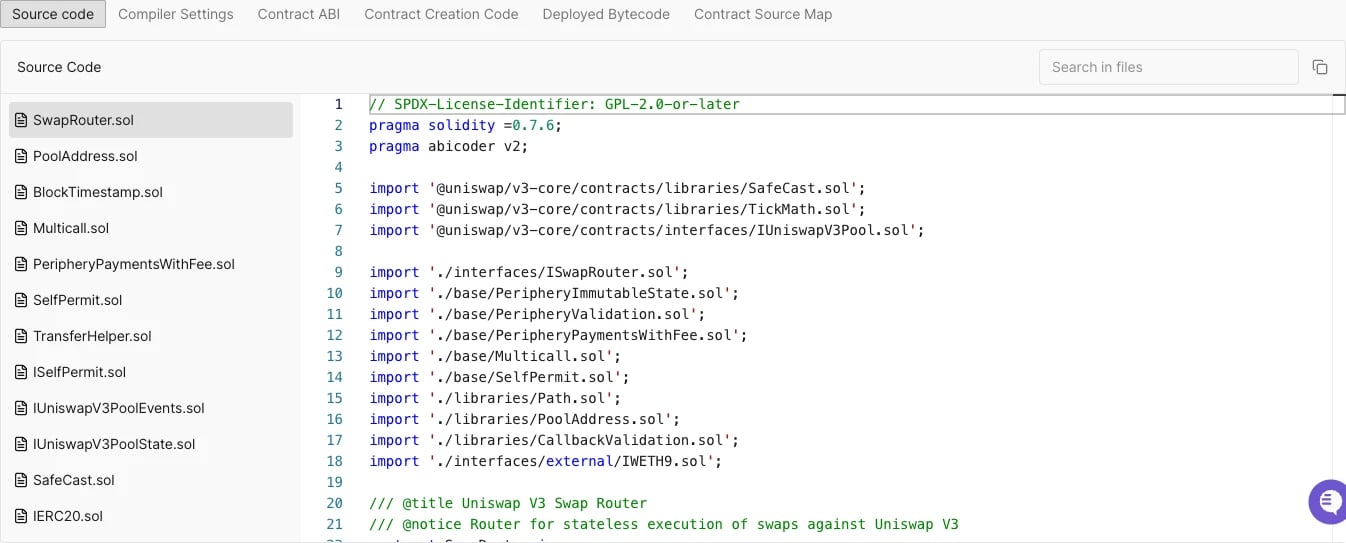
Shows the verified source across six sub-tabs: **Source Code**, **Compiler Settings**, **Contract ABI**, **Contract Creation Code**, **Deployed Bytecode**, and **Contract Source Map**.
### Simulations
Shows the contract's simulated transaction history, and lets you launch a new [simulation](/simulator-ui/overview) directly against the contract.
### Source code
Shows the verified source across six sub-tabs: **Source Code**, **Compiler Settings**, **Contract ABI**, **Contract Creation Code**, **Deployed Bytecode**, and **Contract Source Map**.
 ### Read/Write
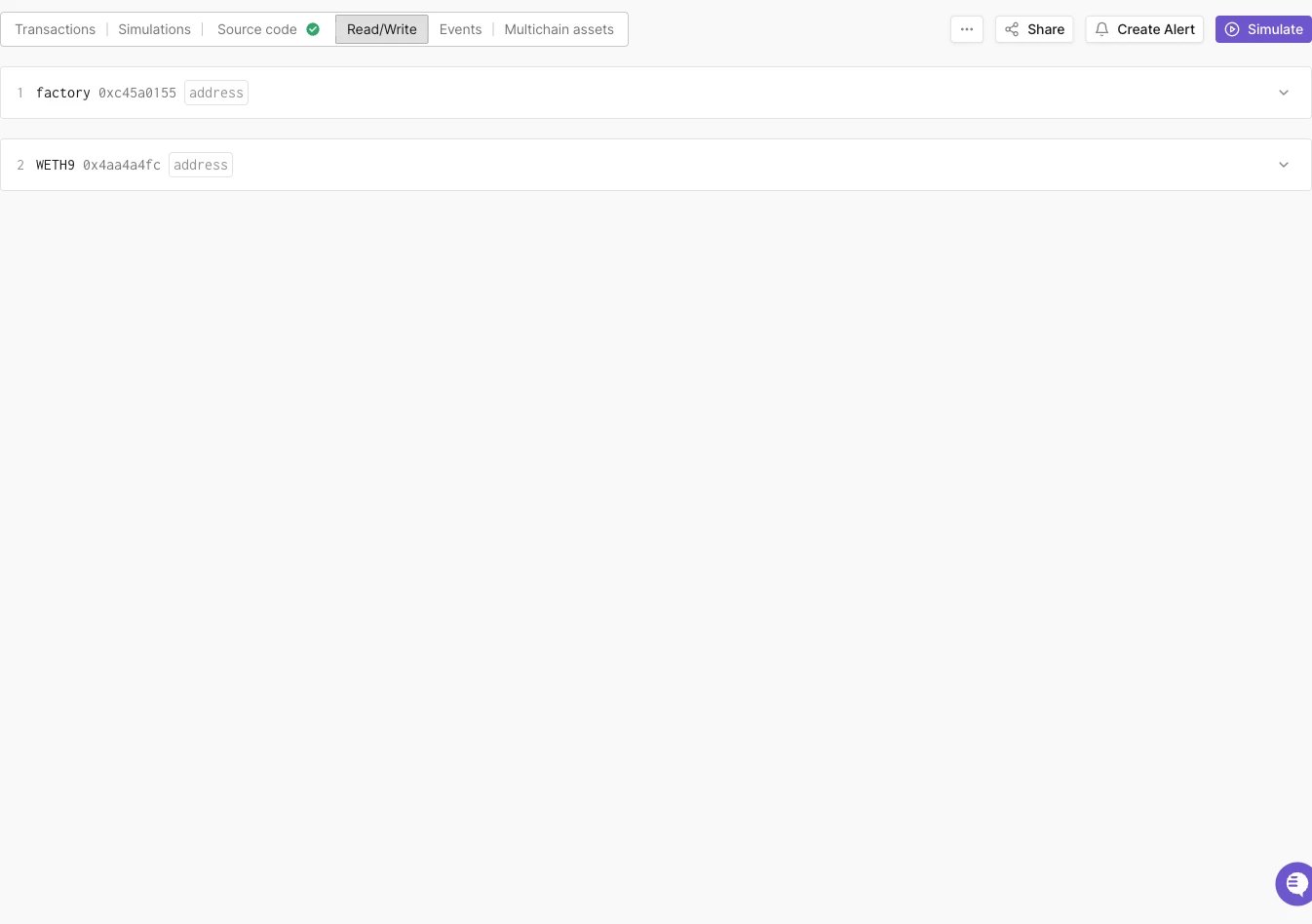
Lists every contract function, grouped into **Read** and **Write** sub-tabs, with a Connect Wallet button, a function search box, and per-function actions: run it, copy as cURL, read at a specific block, open in Simulator, share, or view in source.
### Read/Write
Lists every contract function, grouped into **Read** and **Write** sub-tabs, with a Connect Wallet button, a function search box, and per-function actions: run it, copy as cURL, read at a specific block, open in Simulator, share, or view in source.
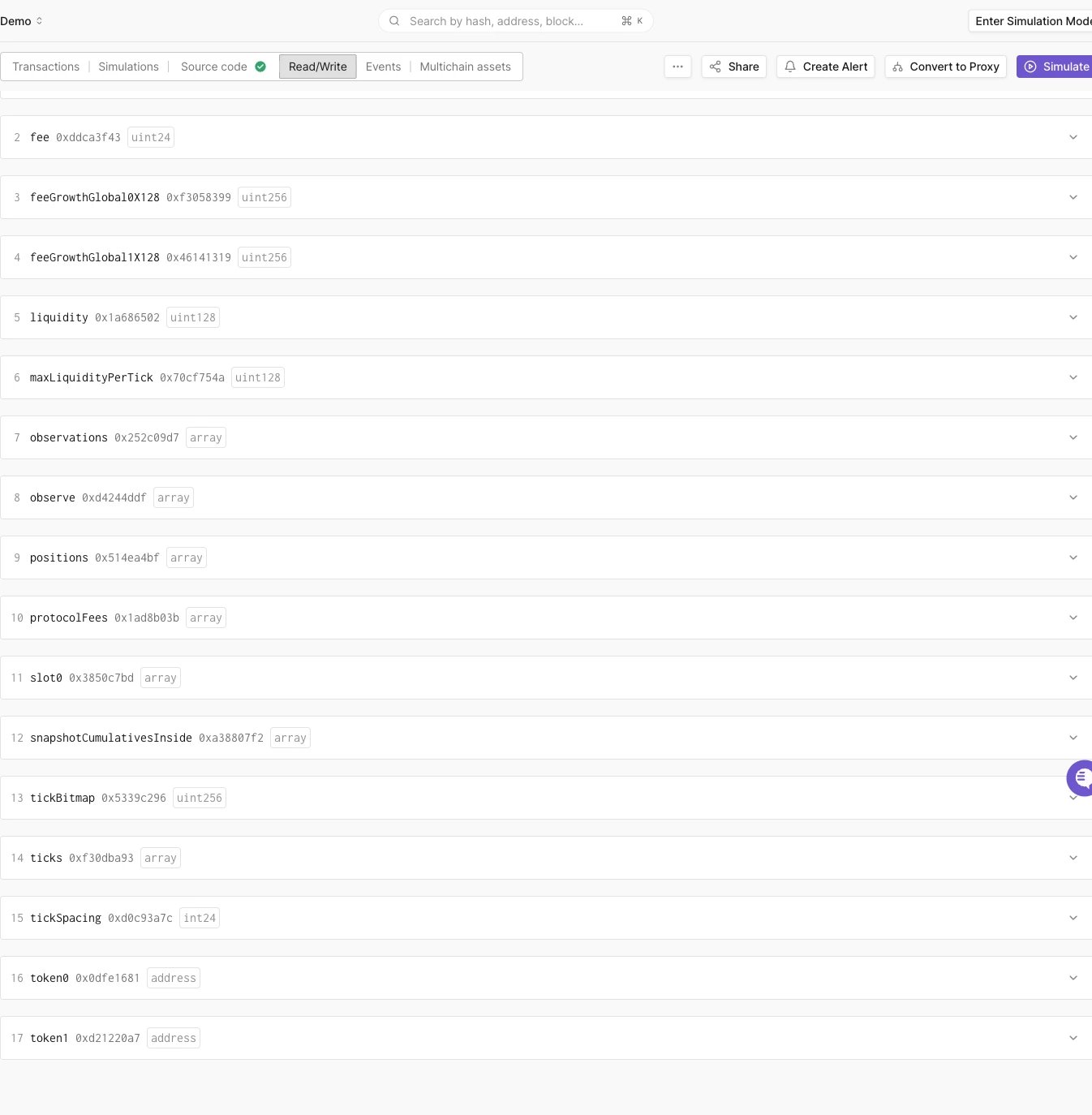 Proxy contracts get two additional sub-tabs, **Read as Proxy** and **Write as Proxy**, which call the functions through the proxy's delegated implementation. See [Proxy contracts](#proxy-contracts) below.
### Events
Lists decoded events emitted by the contract, with an event type filter, a block range filter, a "Hide zero values" switch, and an expand-all option.
### Multichain assets
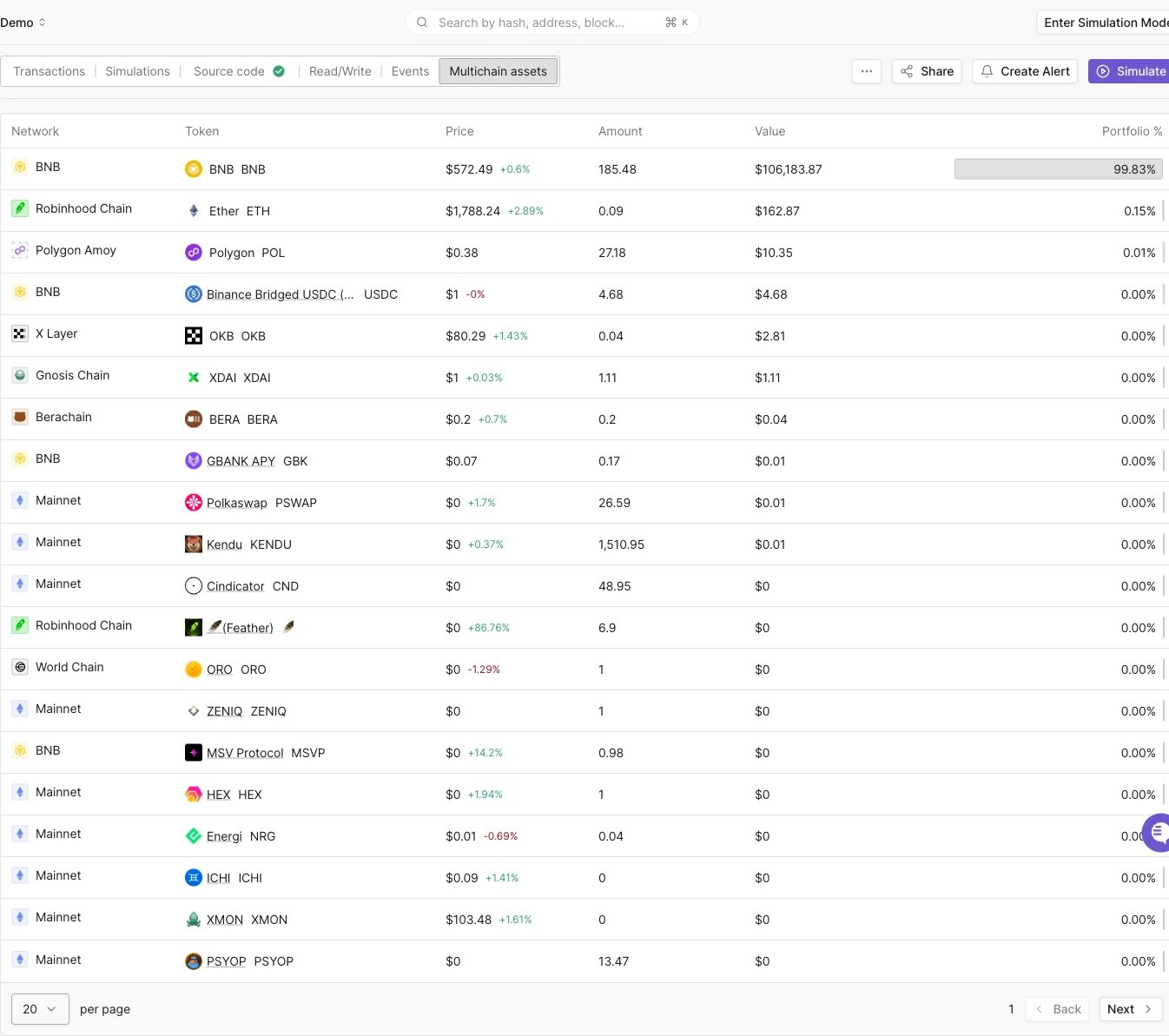
Shows the contract's token and NFT balances across networks, with Token/NFT sub-tabs, a group-by option, a "Hide zero balances" switch, and a search box.
Proxy contracts get two additional sub-tabs, **Read as Proxy** and **Write as Proxy**, which call the functions through the proxy's delegated implementation. See [Proxy contracts](#proxy-contracts) below.
### Events
Lists decoded events emitted by the contract, with an event type filter, a block range filter, a "Hide zero values" switch, and an expand-all option.
### Multichain assets
Shows the contract's token and NFT balances across networks, with Token/NFT sub-tabs, a group-by option, a "Hide zero balances" switch, and a search box.
 ## Adding tags to contracts
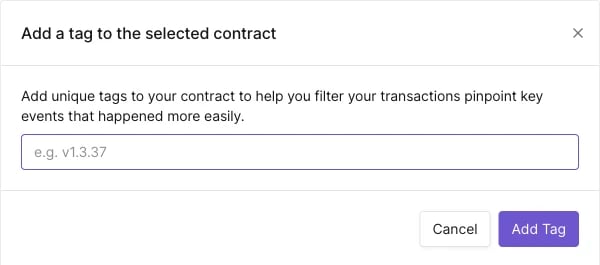
When working with multiple contracts, you need a way to keep them organized. This is where tags come in handy. You can add a tag to a contract by clicking the **Add Tag** link.
Tags also enable you to monitor multiple contracts or wallets grouped under a single tag using Alerts.
## Adding tags to contracts
When working with multiple contracts, you need a way to keep them organized. This is where tags come in handy. You can add a tag to a contract by clicking the **Add Tag** link.
Tags also enable you to monitor multiple contracts or wallets grouped under a single tag using Alerts.
 ## Monitoring contracts with Alerts
Click **Create Alert** from a contract's page to set up an [Alert](/monitoring/alerts/introduction) for it. See the [Alerting Quickstart Guide](/monitoring/alerts/tutorials/quickstart) for the full setup flow and [Alert Types, Targets, and Parameters](/monitoring/alerts/types) for the available triggers.
Alerts are evaluated only for transactions involving your project's contracts and wallets, so the address an Alert targets must be added to the project first.
## Hide a contract from the transaction listing
Every contract you add to a project has its transactions included in the project-wide [Transactions view](/developer-explorer/transaction-listing). For high-traffic contracts added only as Alert targets, such as an ERC-20 token contract you monitor for transfers, this can make the Transactions view noisy.
To exclude a contract's transactions from the project-wide view, open the contract, click the `...` menu in the upper right corner, and select **Hide from transaction listing**. To include it again, select **Show in transaction listing** from the same menu. You can also hide or show multiple contracts at once by selecting them on the project's **Contracts** page and using the **Disable transaction listing** and **Enable transaction listing** toolbar actions.
Hiding a contract only affects the project-wide Transactions view:
* The contract's own **Transactions** tab still lists all of its transactions.
* [Alerts](/monitoring/alerts/introduction) and [Web3 Actions](/monitoring/web3-actions/introduction) targeting the contract keep working; hiding has no effect on monitoring.
Wallets have the same option, labeled **Hide Wallet** in the wallet's `...` menu (see [Wallets](/developer-explorer/wallets)).
## Proxy contracts
Tenderly detects [EIP-1967](https://eips.ethereum.org/EIPS/eip-1967) and [EIP-1167](https://eips.ethereum.org/EIPS/eip-1167) proxies automatically. A detected proxy shows `Type: Proxy Contract` and an **Implementation** field with the current delegate address.
## Monitoring contracts with Alerts
Click **Create Alert** from a contract's page to set up an [Alert](/monitoring/alerts/introduction) for it. See the [Alerting Quickstart Guide](/monitoring/alerts/tutorials/quickstart) for the full setup flow and [Alert Types, Targets, and Parameters](/monitoring/alerts/types) for the available triggers.
Alerts are evaluated only for transactions involving your project's contracts and wallets, so the address an Alert targets must be added to the project first.
## Hide a contract from the transaction listing
Every contract you add to a project has its transactions included in the project-wide [Transactions view](/developer-explorer/transaction-listing). For high-traffic contracts added only as Alert targets, such as an ERC-20 token contract you monitor for transfers, this can make the Transactions view noisy.
To exclude a contract's transactions from the project-wide view, open the contract, click the `...` menu in the upper right corner, and select **Hide from transaction listing**. To include it again, select **Show in transaction listing** from the same menu. You can also hide or show multiple contracts at once by selecting them on the project's **Contracts** page and using the **Disable transaction listing** and **Enable transaction listing** toolbar actions.
Hiding a contract only affects the project-wide Transactions view:
* The contract's own **Transactions** tab still lists all of its transactions.
* [Alerts](/monitoring/alerts/introduction) and [Web3 Actions](/monitoring/web3-actions/introduction) targeting the contract keep working; hiding has no effect on monitoring.
Wallets have the same option, labeled **Hide Wallet** in the wallet's `...` menu (see [Wallets](/developer-explorer/wallets)).
## Proxy contracts
Tenderly detects [EIP-1967](https://eips.ethereum.org/EIPS/eip-1967) and [EIP-1167](https://eips.ethereum.org/EIPS/eip-1167) proxies automatically. A detected proxy shows `Type: Proxy Contract` and an **Implementation** field with the current delegate address.
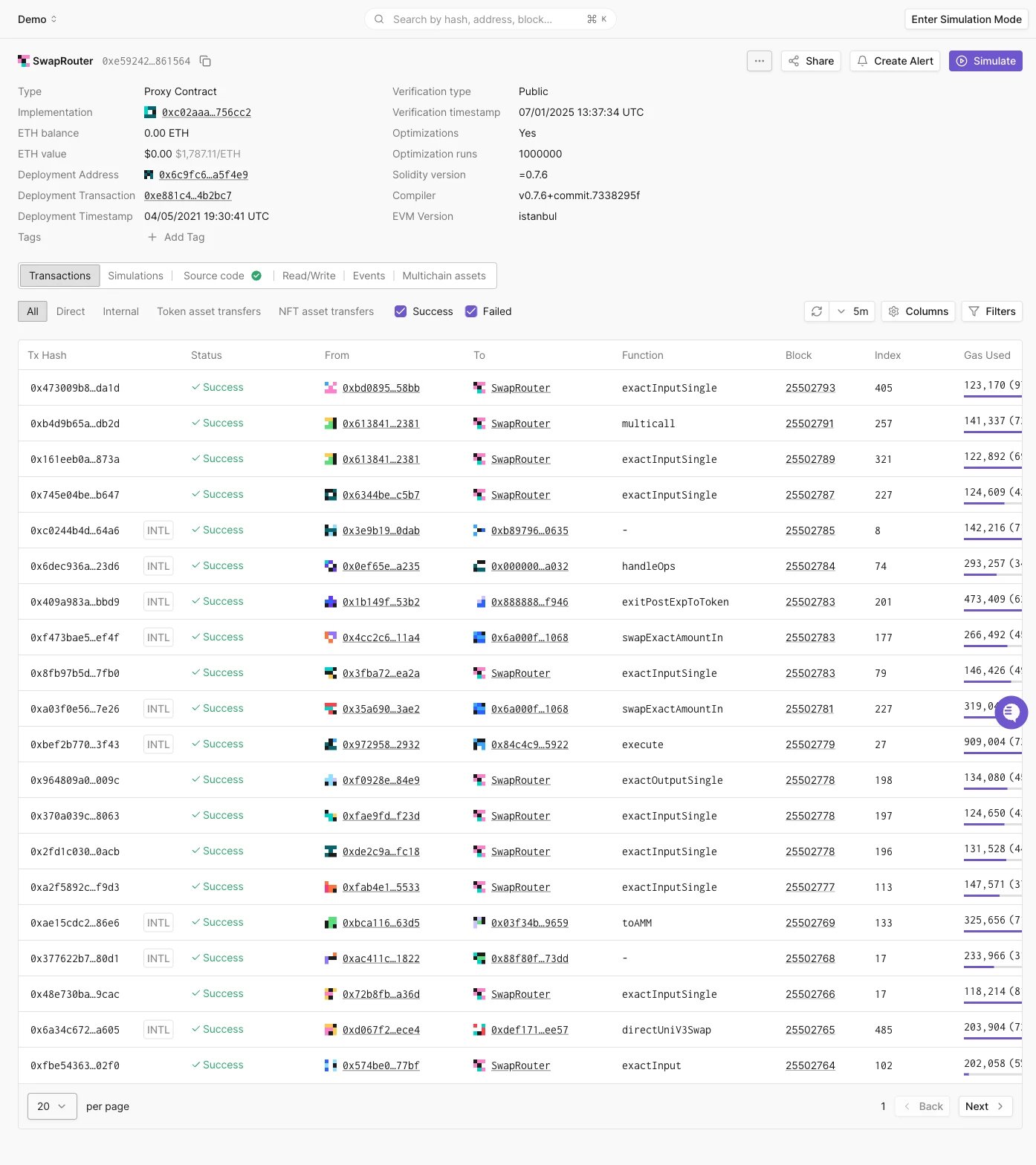 When Tenderly has recorded more than one implementation address over time, an icon next to the Implementation field opens a **Proxy Contract Implementations** dialog listing the current implementation followed by prior ones, most recent first.
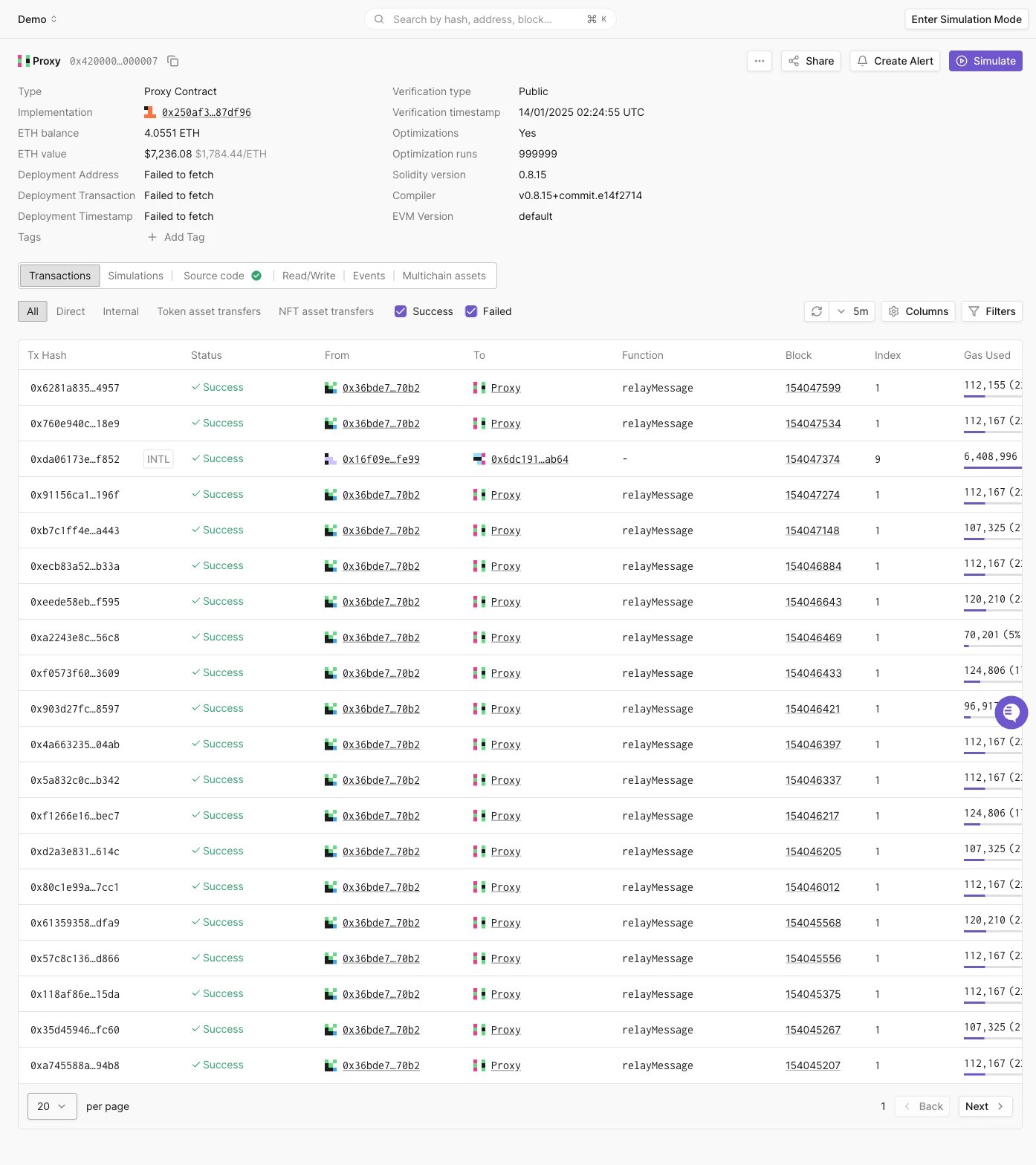
 Proxy contracts also get **Read as Proxy** and **Write as Proxy** sub-tabs on the Read/Write tab, calling functions through the delegated implementation instead of the proxy itself.
 ### Non-standard proxy implementations
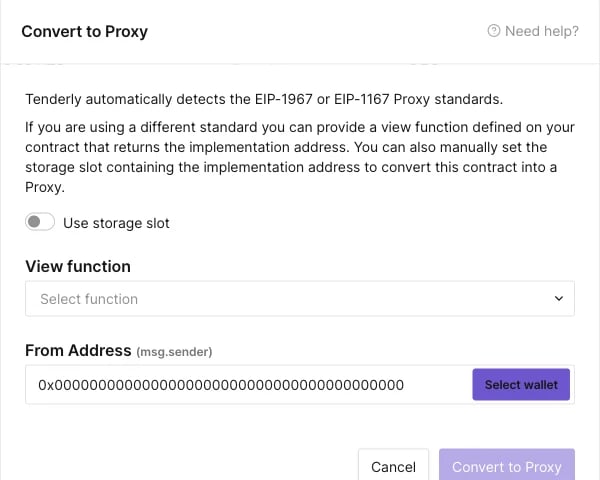
For non-standard solutions, you'll need to manually convert the contract to a proxy.
Click the **Convert to Proxy** button on the top right of the contract's page.
### Non-standard proxy implementations
For non-standard solutions, you'll need to manually convert the contract to a proxy.
Click the **Convert to Proxy** button on the top right of the contract's page.
 **Set the storage slot** containing the implementation address, or **pick a view function** that returns the implementation address.
 This documentation is built and hosted on [Mintlify](https://mintlify.com), a developer documentation platform.